Why Businesses Need a PDF Document Signer
Ask anyone in HR or accounts about month-end, and you’ll probably get a tired laugh. Payroll is closing, vendor invoices are stacking up, and somewhere in the middle sits a folder of PDFs that all need a digital signature before they can go anywhere. So someone opens the first file, picks the certificate, signs, saves, and closes it. Then they open the next one. Nothing about it is hard. It just never seems to end.
That’s the gap a PDF document signer fills. Bulk digital signing takes it a step further by letting you sign the whole folder in one go.
In this guide, we’ll cover how it works, where it helps, and what to check before you pick a tool. We’ll also look at ByteSIGNER, an offline bulk signing tool that works with the digital certificate you already have.
What Is a PDF Document Signer?
A PDF document signer is software that lets you sign PDF documents digitally, using a digital certificate or DSC, without handling every file by hand.
It wasn’t long ago that a signed document meant printing it, signing it with a pen, scanning it, and saving yet another copy. A PDF document signer skips all of that. The signature goes straight onto the PDF, right on your computer. Depending on the tool, you can also choose where the signature appears, add a timestamp, and decide how the signed file gets saved.
Which Certificates Are Used
Every digital signature relies on a digital certificate. Most businesses keep theirs as a DSC on a USB token, though some store it as a PFX file on a computer.
This is where a lot of buyers get mixed up. A DSC provider, which is a licensed Certifying Authority, issues your certificate. A PDF document signer just uses it. ByteSIGNER is the second kind: a bulk digital signing tool, not a DSC provider. It never issues or sells certificates, so you’ll need a valid, compatible one before you start.
The good news is that plenty of businesses already have one. If your team holds a DSC on a USB token for filings like GST or MCA, you can reuse it for other PDFs too. There’s nothing new to buy.
One PDF vs. Many PDFs
Signing a single document directly is perfectly fine when it only happens now and then. But once your team is signing similar documents on a regular schedule, that habit starts to drag. A dedicated tool can handle the whole group in one run.
Why Dedicated Software Helps
Dedicated software brings a bit of order to the job. You can set signature positions, reuse your certificate, keep signed files organized, and check what happened after each run. For regular signing work, that adds up to less effort and more consistent results.
What Is Bulk Digital Signing?
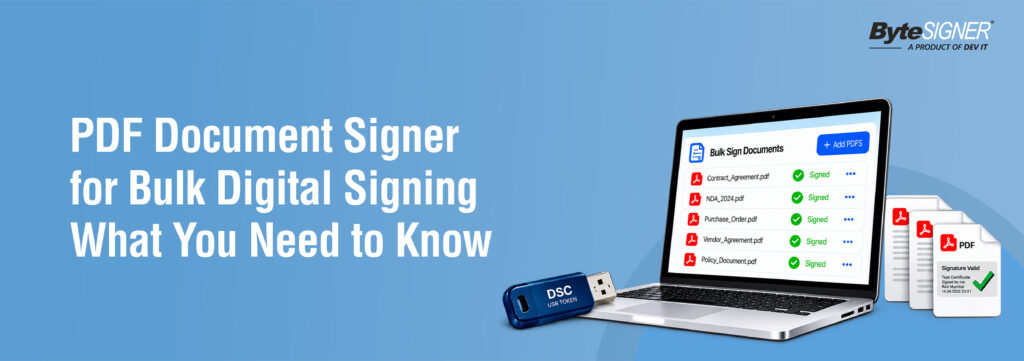
Bulk digital signing is simply the process of signing a large batch of PDF documents all at once in a single workflow.
You select a group of files, set your options once, and let the software work through the batch. Every file gets the same settings, so you aren’t repeating each action yourself. It isn’t really about handling more files. It’s about making a tiring task feel manageable.
Most business documents follow a familiar pattern. They’re created in groups, they need the same kind of signature, and they show up again on a schedule. Bulk signing fits that rhythm well.
Documents Commonly Signed in Bulk
- Invoices
- Purchase orders
- HR documents such as salary slips and appraisal letters
- Vendor documents
- Business records
- Application forms
- Government-related documents
ByteSIGNER can sign any PDF, so treat this list as a starting point.
How a PDF Document Signer Works for Bulk Signing
The exact steps depend on your software and certificate.
Here’s how the flow looks in ByteSIGNER.
Choose the PDF Files
Select the documents you want to sign. They might all come from one department, or from a bigger batch that shows up on a regular schedule
Connect Your Digital Certificate or DSC
Plug in your USB token, and ByteSIGNER picks up the certificate automatically. If you’d rather use a PFX file, choose it from your computer and enter its password.
Choose Your Signing Settings
Next, show ByteSIGNER where the signature belongs on the page. You can pick one of the predefined spots or set a custom location to place it exactly where your document needs it. If a document needs more than one signature, you can add several to the same PDF. A timestamp is optional, and once everything looks right, you can save it all as a signing profile. The next time you sign, you just load the profile and go.
Start the Bulk Signing
Now comes the part that saves you time. On the Business plan, you stay in control: your team picks the files and starts the run. The Enterprise plan supports automated bulk signing, which is a better fit when the same large job keeps coming back.
Review the Results
You can watch the batch as it goes, because ByteSIGNER shows progress and log messages along the way. Once it’s done, a quick look tells you which files were signed and which ones need another check.
Save the Signed PDFs to Your Output Folder
When the run wraps up, your signed documents are waiting in a folder of their own. Your originals stay exactly where you left them, so nothing gets overwritten or mixed up.
Why Use a PDF Document Signer for Bulk Digital Signing?
The real benefits show up in your day-to-day workflow, not in big promises.
Sign Multiple PDFs Together
Instead of opening, signing, and saving file after file, you process the whole group at once. That’s a big chunk of manual effort gone.
Save Time on Repetitive Work
When your team signs regularly, those repeated steps add up quickly. Bulk signing gives that time back, so people can get on with work that actually needs them.
Keep Signed Files Organized
Signed copies land in their own folder, away from your source documents, and naming options make them easy to find later.
Reduce Manual Steps
Fewer manual actions mean fewer small mistakes and a smoother routine for everyone involved.
Track the Process
With a big batch, guessing doesn’t cut it. Progress tracking and logs let you check how every run went.
Where Is Bulk PDF Digital Signing Commonly Used?
Any team that signs lots of PDFs the same way can benefit. The documents may differ, but the need is the same: many files, one process.
- HR teams deal with employee documents, joining documents, and HR records, which are often produced in groups at set times.
- Finance and accounts teams live with invoices, vouchers, and other business documents. Most of these follow the same signing process, which means a whole batch can be handled together instead of one file at a time.
- Procurement and vendor teams work with purchase orders, vendor documents, and agreements every day. When a file needs more than one signature, multiple signatures on a single PDF mean both parties sign the same document, so nobody has to juggle duplicate versions
- Businesses with large document volumes often process papers department by department, again and again. That’s where a repeatable workflow really pays off.
- Government and institutional workflows can also involve large sets of forms and records that need digital signatures. A signing tool supports the workflow, but it doesn’t carry government approval or certification on its own, and ByteSIGNER doesn’t claim any.
What Should You Look for in PDF Document Signer Software?
Adding a signature to a PDF is the easy part. What matters more is how well the tool copes with real, repeated work.
Here is what to look for:
- Bulk PDF signing: The tool should be able to work with multiple files at a time so that you don’t have to go through them one by one.
- Offline signing and file privacy: when the work happens on your own computer, your files stay with you.
- Certificate support: it should work with the certificate you already have, whether that’s a USB token, a PFX file, or both.
- Easy document selection: choosing your files should feel quick and simple, with no digging around.
- Separate output folder: signed copies go in their own place, so your originals stay safe and easy to find.
- Progress or logs: you can check how a big run went at a glance.
- Timestamping: it adds a time record to the signature.
- A simple, repeatable workflow: saved profiles and similar features suit regular business use.
Offline PDF Document Signer vs. Online PDF Signing
Teams often ask whether a desktop application or an online service is the better fit. Here’s a fair, fact-based comparison.
Factor Offline PDF signer Online PDF signing Where files are processed On your own system Through an online service Internet dependency Signing doesn’t need your files uploaded online Usually needs an internet connection File handling Files stay on the local system Files may need to be uploaded Bulk workflows Suitable for repetitive local signing Depends on the service Business document privacy Local processing is often preferred Depends on the provider
One practical note on ByteSIGNER: the signing itself happens locally, but the software does need an internet connection for licence activation and occasional licence checks. It’s worth planning for that during setup.
Neither option wins every time. If offline bulk signing is your priority, a desktop tool like ByteSIGNER deserves a look.
How to Choose a Right PDF Document Signer for Your Business
Rather than comparing long feature lists, start with how your team actually works:
- Do you sign a single PDF now and then, or many PDFs regularly?
- Do you need your files to stay on your own system?
- Which certificate do you hold, and is it valid and current?
- Do you need logs or timestamps for your records?
- Where should signed documents be saved?
- How often will your team repeat the same signing task?
Answer these honestly, and the right tool gets much easier to spot. There’s no need to pay for anything you won’t use.
How ByteSIGNER Helps With Bulk PDF Digital Signing
ByteSIGNER is built for one clear job: signing PDF documents in bulk through an offline desktop workflow, using your own digital certificate.
- Offline, local signing: it runs as a desktop application, and your documents stay on your own system.
- Bulk signing: it processes whole batches of PDFs together.
- USB DSC token support: it works with your existing token and detects the certificate automatically.
- PFX support: if your certificate lives in a file, ByteSIGNER can sign straight from your computer.
- Separate output folder: signed files get their own space, so your originals stay exactly as they were.
- Progress and activity logs: you can look back and see what happened in every run, with no guesswork.
- Timestamping: you can add a timestamp to your signatures whenever you need one.
ByteSIGNER also covers the smaller details that make daily work easier. You can password-protect signed PDFs, update PDF metadata, choose how output files are named, save multiple signing profiles, and use the software in your preferred language.
Which Plan Is Right for You: Business or Enterprise?
Both plans sign with a USB token or a PFX file. The Business plan offers manual bulk signing and suits small and medium businesses with lighter signing needs. The Enterprise plan adds automated bulk signing and suits medium and large businesses with heavy, recurring workloads.
Two Quick Tips Before Your First Batch
- Check that your certificate is valid. An expired DSC or PFX gives you a signature that won’t hold up.
- If your token isn’t detected, check its driver installation and restart your computer once before trying again.
It also helps to run a small test on a few files first. That way you can confirm the signature position before you process a full batch.
Final Thoughts
Signing PDFs one by one works fine until the volume grows. Then it quietly takes over your team’s day. Bulk digital signing gives that time back by turning a long, repetitive routine into a single workflow you can actually track.
As you compare tools, look past the signature itself. Think about how well each one handles batches, certificates, privacy, output, and logs.
ByteSIGNER is built for exactly this kind of work. It signs PDFs in bulk, offline, with the certificate you already own, and it never touches your original files.
Ready to see how it fits your workflow? Start your ByteSIGNER trial and try offline bulk PDF signing with your own documents.
Frequently Asked Questions
It’s software that lets you digitally sign PDF files using a compatible digital certificate or DSC.
Signing PDFs one by one gets old fast. The quicker way to add digital signature to PDF files in bulk is a bulk PDF signer. Pick all your files, choose your certificate, mark where the signature should show up, and click start. The tool does the rest, so you never have to add digital signature to PDF after PDF by hand.
No. You’ll need your own valid, compatible certificate from a licensed Certifying Authority.
Yes, you can use either one. If you plug in a USB token, ByteSIGNER finds the certificate on its own. If your certificate is a PFX file, you just choose it from your computer.
Yes. Signing happens locally on your computer, and your files aren’t uploaded to a cloud server. The software does need an internet connection for licence activation and occasional licence checks.
No, your originals stay exactly as they are. ByteSIGNER saves every signed copy in a separate folder, so the files you started with are never edited or overwritten.
The Enterprise plan. The Business plan covers manual bulk signing.